Know which mode you are using
Live uses real money. Paper, Testnet, Demo, and Simulator are test modes. Keep test and real connections separate and clearly named.
 TrueFixStudio
TRUEFIX STUDIO / USER GUIDE
TrueFix connects the brokers, exchanges, market-data services, and AI services you choose. Start with research or simulation. Connect a real account only after you understand its permissions.
01 / BEFORE YOU START
TrueFix Studio is a desktop app for market research, strategy testing, and reviewed trading actions. It does not hold your money and it does not replace your broker or exchange. Install the official Nightly build, then connect only the services you want to use.
Live uses real money. Paper, Testnet, Demo, and Simulator are test modes. Keep test and real connections separate and clearly named.
First check prices, account information, and the full order flow in a test mode. Move to Live only when you understand every step.
Give each connection the smallest set of permissions required. Never paste an API key or password into AI chat, screenshots, or support messages.
02 / FIRST RUN
A workspace remembers your selected market and panel layout. If it cannot be restored, TrueFix opens a safe default layout.
You can enter the app even if one service is unavailable. Before using that service, wait for it to become ready or read the displayed error.
Start with one market-data or test trading connection. Search for a product, check its price source, and prepare an order without sending it.
xattr -cr "/Applications/TrueFix Studio.app"
Provider means a broker, exchange, data service, or AI service. A ClientInstance is one saved connection to that service. Environment means whether that connection is a test or real-money connection. The app may use these exact names, so this guide keeps them where they help you find the matching setting.
03 / CONNECT A SERVICE
In Connection management, choose Open full connection centre to open Provider Centre. Use the Add monitoring ClientInstance form to enter the instance ID, Provider slug, display name, market, product scope, and actual environment. Enter connection parameters in the on-screen Connection JSON field. Select Historical/Realtime, optionally select Connect after saving, then click Save monitoring ClientInstance. This form sets up market monitoring; it does not grant trading permission.
Create separate ClientInstances for Paper and Live at the same Provider, with unmistakable names such as broker-paper-us and broker-live-us. Avoid toggling one instance back and forth between environments.
04 / MARKET CONTEXT
Choose a canonical Instrument from global search. TrueFix resolves Historical, Realtime, and Trading routes independently.
Keep Provider, ClientInstance, quality, and timestamps visible. When an exact mapping is absent, the route is rejected; a similar-looking symbol is never treated as the same instrument.
05 / REVIEW & RISK
Verify Provider, ClientInstance, Account, and Environment. Ineligible accounts cannot be selected.
Order Type, TIF, quantity, price, and conditional fields come from the resolved OrderSchema.
Check instrument, side, price, size, fee assumptions, rules, and freshness. Any field change invalidates the old review token.
Submission uses a deterministic client order ID and idempotency. An unknown result is queried and reconciled—never resubmitted.
uncertain, preserve the client order ID and reconcile. Unknown is neither failure nor permission to submit again.The Kill Switch is backend risk state, not decorative UI. Record scope and reason, confirm affected accounts and strategies stop creating new actions, then resolve incidents, pending orders, and Provider health before release. Every new order must be reviewed again. Release never resumes or replays old intent.
06 / PORTFOLIO
Portfolio reads the authoritative trading projection and filters by Provider, ClientInstance, account, and environment. Application-owned orders remain separate from external or unknown orders. A normal page refresh reads the local projection; an authoritative refresh requests Provider reconciliation.
07 / INTELLIGENCE
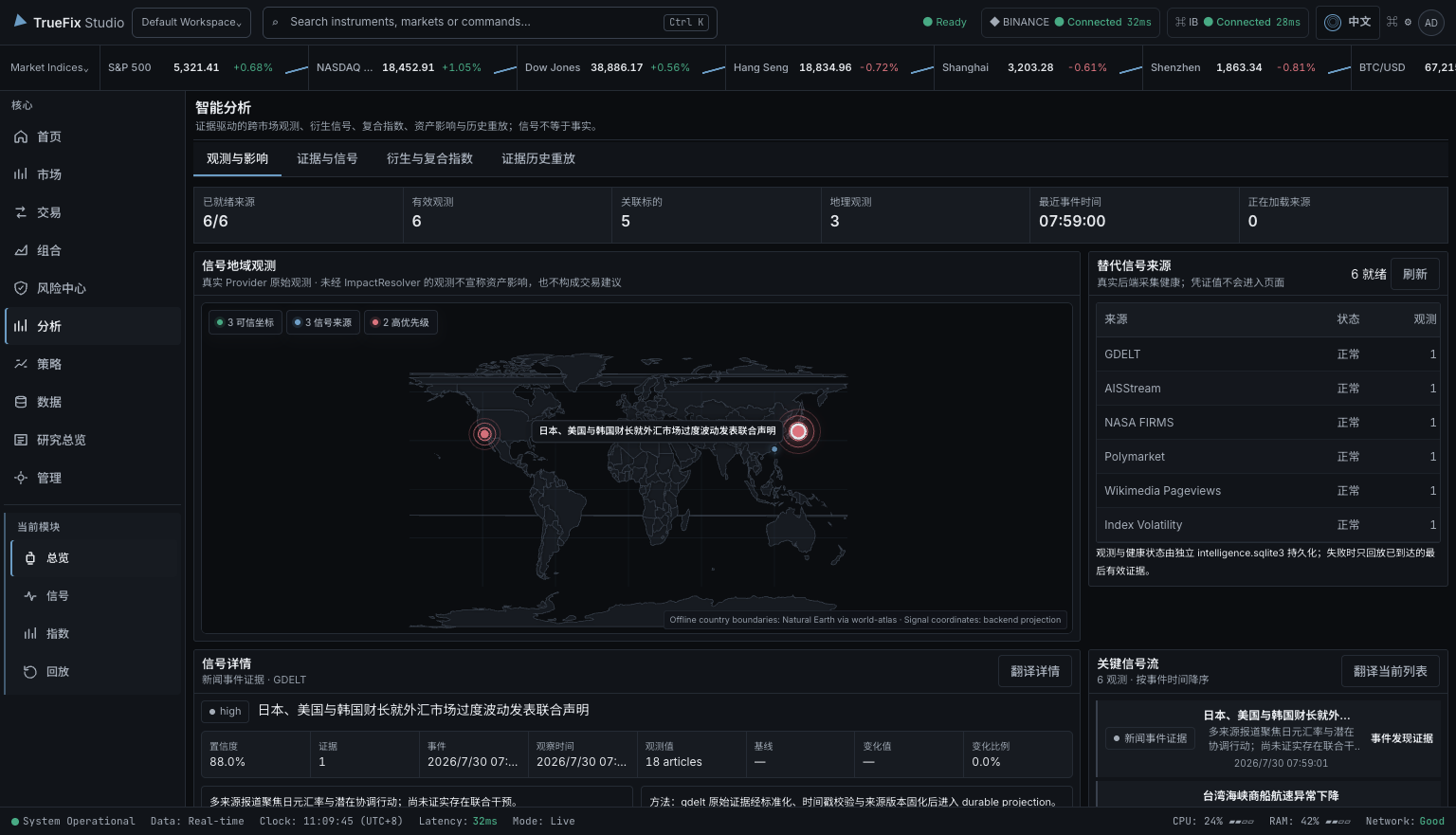
Intelligence presents Observations, Signals, Composite Indices, Evidence, and historical Replay. Inspect current value, baseline, deviation, confidence, freshness, and source diversity, then return to original evidence through the timeline.
A Signal is an auditable analytical result—not a confirmed fact—and never creates an order directly. Only the explicit “Open in chart” action brings a related Instrument into the trading workspace.
 Open full resolution ↗
08 / AGENT
Agent is a constrained operating assistant—not an autonomous trader with account authority. It reads instruments, markets, news, Signals, accounts, and Quant state through authorized TrueFix tools. Trading requests can only produce reviewable proposals. Tool availability may differ between test builds; the run timeline is the source of truth.
Enter the API Key and model ID in the Desktop Settings → AI form and save. JSON model request parameters belong in the on-screen input field; the app saves them.
Select Add under “AI trading agents.”
Set a display name, Provider (OpenAI / Anthropic / Google / Custom), API Key, and model ID. Enter Base URL only for a compatible custom gateway.
Model request parameters must be a JSON object, such as {"enable_thinking": false}. Keep {} when unused; never place a secret there.
When editing an existing Agent, leave API Key blank to retain the stored key. Confirm the enabled status after saving.
Use the bottom command bar in Desktop, Web Desktop, or H5. Create a session and select an enabled model.
Name the instrument, venue, time range, preferred source, and goal. For account work, state the Environment; begin with Simulator or Testnet.
Check admission, model, tool, approval, and final states. Verify Provider, ClientInstance, timestamps, freshness, and evidence on tool results.
Separate facts, inference, and correlation. If data is stale, degraded, denied, or incomplete, narrow the request or repair the source first.
Inspect instrument, side, size, account, environment, expiry, and evidence on the Approval Card. Approval still leads through Review, RiskGuard, and explicit submission; rejection or expiry places no order.
Compare AAPL volatility and volume over the last 20 sessions. Cite source timestamps and list what cannot be verified.Read the Paper account only. Summarize concentration, open orders, and realized/unrealized P&L. Do not initiate a trade.Draft a Simulator limit order for this instrument. Show route, rules, risk, and the approval card first; do not approve it for me.09 / QUANT & AUTOMATION
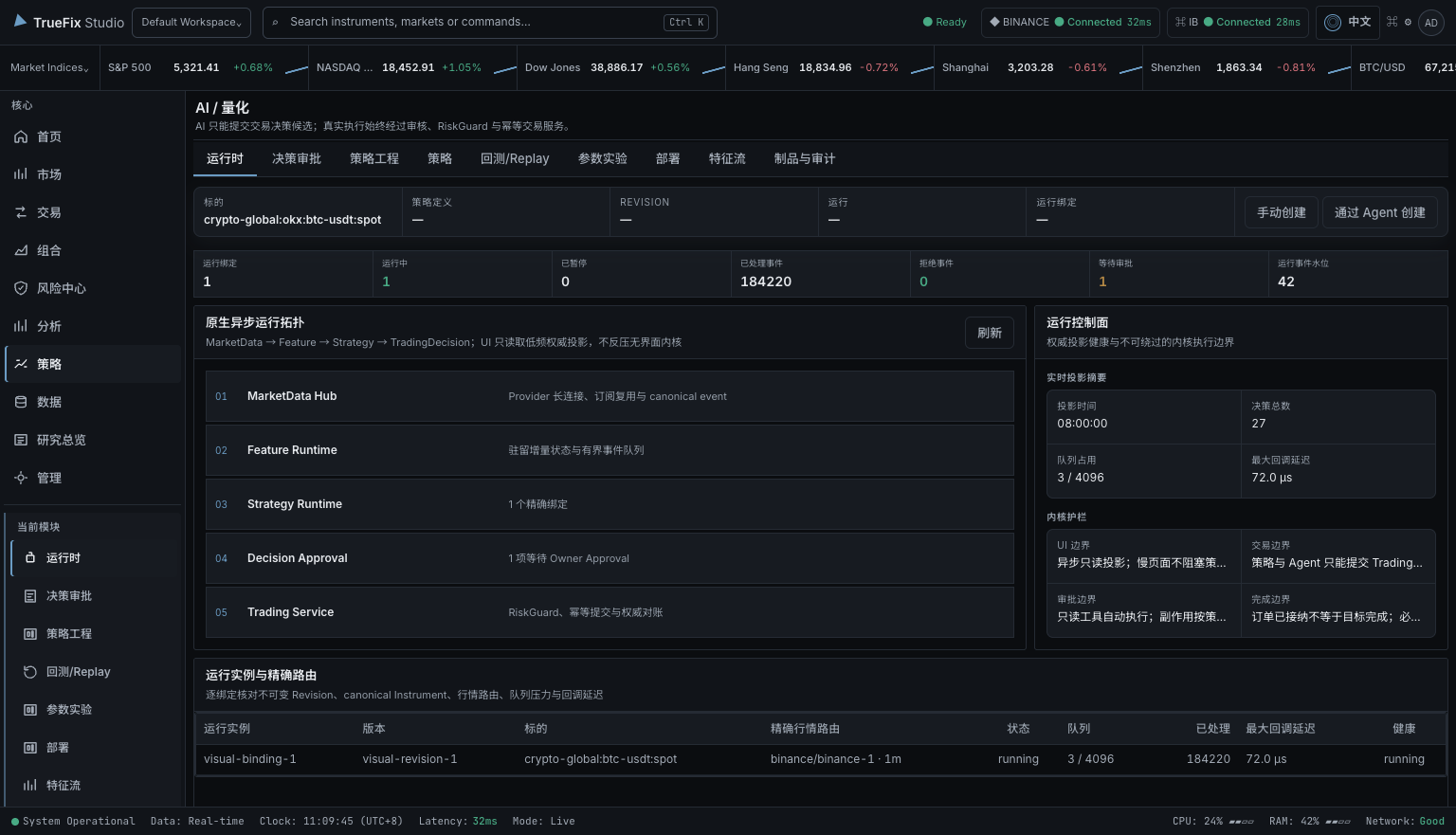
Quant strategies run or replay against fixed data, trading calendar, fees, slippage, seed, and revision inputs. Agent may help draft a declarative Trigger, but it must be validated, replayed on history, and explicitly approved before deployment.
 Open full resolution ↗
10 / WEB GATEWAY & ACME
Open Desktop Settings → Web Gateway and use the on-screen form. Fill in the listening, domain, and HTTPS fields needed for the local or remote access method below; enable the Gateway and click Save and apply. The app saves and applies the settings without stopping the Desktop kernel or Provider connections. Configure DNS records and firewall rules in your DNS provider or network management interface.
Click Generate random password on this page and copy it immediately, or enter at least 12 characters in the custom access password field and click Change access password. Either action revokes existing Web/H5 sessions. Save and apply saves Gateway settings without changing the password.
Choose Local HTTP under HTTPS certificate, set Listen address to 127.0.0.1 or ::1, enter the service port, enable the Gateway, and click Save and apply. Then open the access URL shown on the page.
Enter the password. Choose “Keep me signed in” only when device persistence is wanted; it extends identity lifetime, never trading authority.
Point the A/AAAA records for studio.example.com to the Gateway's public address. Remove an incorrect AAAA record if IPv6 cannot reach the service.
Allowed domains contains DNS names only—no scheme, port, or path. Public access URL is the complete final https:// URL. Wildcard hosts are not accepted by the allowlist.
For an existing certificate, choose Own certificate under HTTPS certificate and fill in the certificate PEM path and private key PEM path fields. For automatic certificates, choose Let’s Encrypt, enter an ACME email, and select HTTP-01, TLS-ALPN-01, or DNS-01 in the ACME validation method field. Enter the Cloudflare Zone ID and API Token for DNS-01 in this same form.
Open Settings → Web Gateway and choose Let’s Encrypt under HTTPS certificate.
Enter studio.example.com in Allowed domains and https://studio.example.com in Public access URL.
Enter https://acme-staging-v02.api.letsencrypt.org/directory in ACME Directory, then fill in the ACME email, validation method, and its required fields.
Enable the Gateway, click Save and apply, and check the runtime and certificate status on the page. Staging certificates are for testing and are intentionally untrusted by browsers.
After testing, change the same ACME Directory field to https://acme-v02.api.letsencrypt.org/directory and click Save and apply again. Check the issuer, domain names, and expiry.
A staging certificate is deliberately untrusted; use it only to rehearse issuance and renewal. HTTP-01 must preserve the public /.well-known/acme-challenge/* path. For DNS-01, create a least-privilege DNS:Edit Token for the target Zone—never use a Global API Key.
?workspace=<id> when needed; the default is main-workspace.11 / OPERATIONS & AUDIT
Operations answers what happened, when, who initiated it, and what scope was affected. Logs, Audit, Activity, Health, and Incidents have different meanings: logs may rotate, trading/security audit is durable, and “no new log lines” never proves health.
Include display timezone, Environment, Provider, and ClientInstance. Keep only a redacted account suffix.
Keep error code, correlation ID, order/client order ID, revision, and freshness. Exclude API keys, cookies, and full account numbers.
List reproducible steps and state whether Live, an external order, or financial consequence was involved.
~/Library/Application Support/truefix-studio/logs/. Access logs contain IP and User-Agent data; minimize retention and verify redaction before sharing.12 / STATUS GLOSSARY
A projection is being fetched; retained content or a skeleton is not failure.
The authoritative query succeeded and currently has no records.
A capability, permission, mapping, or service is absent; the action cannot run.
Last-good data exists but exceeded its freshness threshold; inspect as-of time.
Some sources or facets failed; clearly identified remaining abilities may still work.
Schema, authorization, rules, or RiskGuard explicitly denied the request.
TrueFix is comparing its projection with Provider authority; keep current state pending confirmation.
The Provider may have accepted a request but the response is unknown; query recovery only.
Read every state with its source, as-of, revision, and stable code. One stale facet does not make the whole application unavailable, and a green connection dot does not prove account, instrument, and execution-route eligibility.
13 / ARCHITECTURE
The browser is not the authority for instruments, accounts, orders, market data, risk, or AI/Quant. Every entry point shares canonical contracts and retains original adapter provenance. The UI does not manufacture missing data, silently mix Providers, or hard-code capability by Provider name.
14 / TROUBLESHOOTING
Return to Settings → AI and confirm at least one saved Agent is enabled. Check the API Key, model ID, and optional Base URL. A custom gateway also requires valid JSON object request parameters.
Check the tool grant, account/instrument scope, and expiry. Trade submit, cancel, and replace always require owner approval; expired authorization, changed arguments, or the Kill Switch fails closed.
Check Environment, trading capability, entitlement, account status, exact Instrument mapping, TradingRules, and freshness. Connection alone is not eligibility.
Historical and Realtime are separate facets. Check realtime source selection, subscription entitlement, source health, and whether the first Tick has arrived.
A field, route, account, or rules change may invalidate the token. Run Review again and use both the stable error code and original Provider message.
Keep the client order ID and query Orders / Reconciliation. Do not click submit again or create a duplicate order.
Read configured/effective Gateway state and last_error first. Then check Listen address, service port, A/AAAA, firewall, and TLS. For HTTP-01 test public 80; for TLS-ALPN-01 ensure 443 reaches TrueFix directly; for DNS-01 check Zone, Token, and TXT propagation.
Confirm the Directory was changed from staging to production, the host appears in certificate SAN, client time is correct, and a reverse proxy is not still serving an old certificate.
Inspect the affected facet and timestamp. Last-good data is not necessarily fresh, and a failed query is not an empty result.